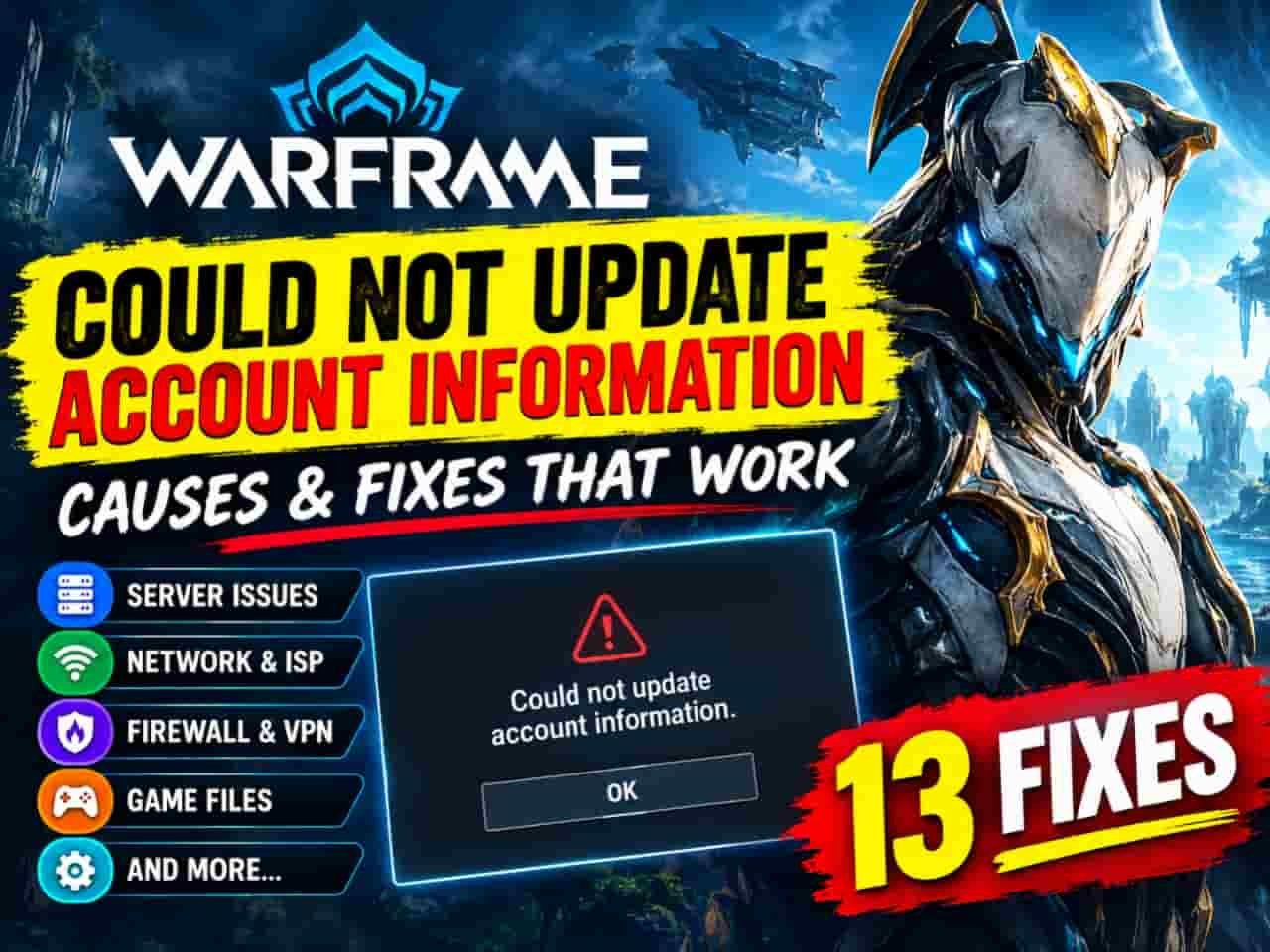
If you are playing Warframe and suddenly see the message “Could not update account information”, you are not alone. This error can appear at some of the worst possible moments, especially after completing a mission when Warframe is trying to send your rewards, progress, XP, credits, resources, and other account data back to its servers.
The frustrating part is that the message does not clearly tell you what went wrong. It can be caused by a temporary Warframe server problem, an unstable internet connection, router or ISP issues, firewall interference, VPN or proxy routing, network-port conflicts, or even a bug affecting a particular mission or quest.
There have also been cases where the error was caused by a specific Warframe bug rather than anything being wrong with the player’s setup. For example, Digital Extremes documented a recent issue where the Eris Junction Specter fight could produce the exact “Could not update account information” message, and the developer patched it server-side. (Warframe)
This guide explains what the error means, why it happens, whether your progress is safe, and what you should do on PC, PlayStation, Xbox, Nintendo Switch, or other supported platforms.
What Does “Could Not Update Account Information” Mean in Warframe?
The Warframe could not update account information error generally means that the game was unable to successfully communicate certain account or mission information with the Warframe servers.
Think of a completed mission as a transaction.
You finish a mission and the game needs to tell the server something like:
- Mission completed
- XP earned
- Credits earned
- Resources collected
- Mods acquired
- Relics or other rewards obtained
- Quest or objective progress completed
- Challenges completed
- Items changed or crafted
- Other account-state information updated
If that communication fails or takes too long, Warframe can become stuck on a message such as:
“Could not update account information.”
You may also see:
“Retrying in 3”
or
“Updating Account Information, Please Wait.”
In some situations, the game eventually returns you to the login screen.
This is why the error can be particularly worrying after a long mission. Older Warframe community reports describe the problem occurring at extraction or at the mission-completion screen, sometimes followed by lost progress. (Warframe Forums)
However, it is important not to assume that every occurrence means your account has been damaged or that your entire save has been lost.
The underlying cause matters.
Why Does Warframe Say “Could Not Update Account Information”?
There isn’t one universal cause.
The error can occur because of problems on your side, your network, your ISP, Warframe’s servers, or the game itself.
Here are the most important possibilities.
1. Warframe Servers Are Having Problems
The first thing you should consider is a server-side problem.
If Warframe’s servers are overloaded, undergoing maintenance, experiencing an outage, or dealing with a backend issue, your game may have trouble sending or receiving account information.
This is especially likely when:
- A major update has just launched
- A new Prime Access release has gone live
- A popular event has started
- A hotfix has just been deployed
- Many players are logging in simultaneously
- The problem suddenly affects large numbers of players
Digital Extremes itself notes that server issues and increased traffic can cause connectivity and update problems. (Warframe Support)
So before changing DNS settings, opening ports, reinstalling Warframe, or making complicated Windows changes, check whether the problem is affecting other players.
This can save you a lot of unnecessary troubleshooting.
2. Your Internet Connection Is Unstable
Another common explanation is network instability.
You don’t necessarily need a slow internet connection to experience the error.
In fact, your connection can be extremely fast and still have problems communicating with an online game.
What matters is not only download speed, but also:
- Packet loss
- Latency
- Connection stability
- Routing
- Temporary disconnections
- ISP problems
- Wi-Fi interference
- NAT issues
Digital Extremes describes its “Network Not Responding” warning as an indication that communication between your device and Warframe’s servers is unstable or taking too long. (Warframe Support)
That same type of network instability can contribute to account-update problems.
What should you try?
If possible, temporarily switch from Wi-Fi to Ethernet.
If you cannot use Ethernet, move closer to your router and reduce other devices using the network.
Digital Extremes specifically recommends wired connections where possible because Ethernet avoids many wireless interference and latency problems. (Warframe Support)
3. Your ISP Could Be Causing the Problem
Sometimes the problem isn’t your computer or console at all.
Your Internet Service Provider may be experiencing:
- Routing problems
- Regional outages
- Maintenance
- Packet loss
- IPv4-related issues
- Congestion
- Problems reaching particular services
A useful test is to connect your PC or console to a mobile hotspot temporarily.
If Warframe works normally over the hotspot but repeatedly fails on your home internet, you’ve learned something important.
The problem is probably related to:
home router → ISP → route to Warframe
rather than the Warframe installation itself.
Digital Extremes recommends testing an alternative internet connection when troubleshooting certain connectivity problems. (Warframe Support)
4. VPN or Proxy Problems
A VPN can change how your traffic reaches Warframe’s servers.
That can occasionally create connectivity problems.
If you’re using:
- VPN software
- Gaming VPN
- Proxy
- Corporate VPN
- Privacy-routing software
- Certain security applications
try temporarily disabling it.
Digital Extremes specifically recommends disabling VPNs and proxies while troubleshooting Warframe connectivity and update issues. (Warframe Support)
This doesn’t mean VPNs are inherently incompatible with Warframe. It simply means that removing them temporarily is a useful diagnostic test.
If Warframe immediately starts working after disabling your VPN, you’ve identified a likely source of the problem.
5. Firewall or Antivirus Is Blocking Warframe
Your security software can sometimes interfere with Warframe’s network communication.
This is more likely after:
- A Warframe update
- A Windows update
- An antivirus update
- Changing firewall settings
- Installing new security software
On PC, Digital Extremes recommends making sure Warframe is allowed through firewall and antivirus software.
The official support documentation specifically mentions allowing:
Launcher.exeWarframe.x64.exe
through applicable firewall or antivirus filters. (Warframe Support)
Don’t permanently disable your security software just to play Warframe.
Instead, use temporary testing and properly configured exceptions.
6. A Warframe Bug May Be Responsible
This is an important point that many troubleshooting guides overlook.
Sometimes you didn’t do anything wrong.
Warframe is a huge live-service game with years of systems, missions, quests, account features, cross-platform functionality, events, and backend services.
Occasionally, a specific game mechanic can trigger an account-update error.
A good recent example is the Eris Junction issue. Digital Extremes documented a problem where players unable to complete the Eris Junction Specter fight could receive the “Could not update account information” message. The developer said the issue had been patched live and then documented the fix in the hotfix notes. (Warframe)
This demonstrates an important troubleshooting principle:
If the error consistently happens at exactly the same mission, quest, Junction, or activity, don’t automatically assume your internet is broken.
It may be a game-side bug.
7. Network Port Conflicts
Warframe also uses specific network ports.
If multiple computers or consoles are playing Warframe on the same network, port conflicts can sometimes interfere with connectivity.
Digital Extremes has a specific support article explaining that multiple Warframe devices on one network can encounter UDP port conflicts and recommends changing the network ports used by the second device. (Warframe Support)
This is particularly relevant if:
- Two people play Warframe in the same house
- You have multiple gaming PCs
- You use multiple consoles
- One device suddenly stopped connecting properly after another started playing
For most players, this is not the first troubleshooting step.
Try the simpler fixes first.
8. IPv4 or IPv6 Routing Issues
IP configuration can also play a role.
Digital Extremes’ current support documentation specifically discusses temporarily disabling IPv6 as a troubleshooting test for certain Warframe network problems. (Warframe Support)
The official login troubleshooting guide also notes that some players can experience problems because of the IP address provided by their ISP, including shared IPv4 situations. It recommends testing another connection and, in applicable cases, asking the ISP about IPv6. (Warframe Support)
This is more advanced troubleshooting, so don’t change network settings randomly.
Use it when basic troubleshooting hasn’t solved the problem.
How to Fix “Warframe Could Not Update Account Information”
The best approach is to work from the easiest fixes toward the more advanced ones.
Fix 1: Wait a Few Minutes
If the error suddenly appeared without any changes to your setup, don’t immediately reinstall the game.
First, wait.
If Warframe is experiencing a temporary server problem, nothing you do locally will fix the backend.
This is particularly important immediately after:
- Major updates
- Hotfixes
- New content releases
- Large events
- Scheduled maintenance
Check the official Warframe community channels and support information for reports of widespread problems.
Fix 2: Restart Warframe
Completely close Warframe.
Don’t simply leave it sitting on the error screen indefinitely.
Then start the game again and log in.
A fresh session can clear a temporary connection or authentication problem.
If the error happened after a mission, check whether your important progress was actually saved before immediately repeating the same activity.
Fix 3: Restart Your PC or Console
A full restart is simple but surprisingly useful.
Digital Extremes includes restarting the PC or console among its basic troubleshooting recommendations. (Warframe Support)
Restarting can clear temporary:
- Network states
- Background processes
- Driver issues
- Application conflicts
- Cached connection states
If Warframe suddenly began showing the error after hours of gameplay, a restart is worth trying.
Fix 4: Restart Your Modem and Router
If restarting Warframe doesn’t work, restart your network equipment.
A proper power cycle is better than simply clicking a router restart button.
Digital Extremes recommends turning off the PC or console, powering down the modem/router and other network devices for around 30 seconds, powering the modem back on, waiting, then restarting the router and your gaming device. (Warframe Support)
After everything reconnects, launch Warframe again.
Fix 5: Stop Downloads and Streaming
Check what else is using your internet connection.
For example:
- Steam downloads
- Windows updates
- Console downloads
- Cloud backups
- 4K streaming
- Large file transfers
- Torrents
- Other game updates
Heavy network traffic can make an already unstable connection worse.
Digital Extremes recommends stopping other uploads, downloads, and streaming when troubleshooting connectivity problems. (Warframe Support)
Fix 6: Try Ethernet Instead of Wi-Fi
If you’re using Wi-Fi, test Warframe with a wired Ethernet connection.
This is one of the best diagnostic tests because it immediately helps determine whether wireless interference is contributing to the issue.
If the problem disappears on Ethernet, investigate your Wi-Fi setup instead of reinstalling Warframe.
Fix 7: Try a Mobile Hotspot
This is one of the most useful troubleshooting methods.
Connect your PC or console to your phone’s hotspot and launch Warframe.
You don’t need to use the hotspot permanently.
You’re simply testing whether the error follows your device or your home network.
If Warframe works on the hotspot
Your home network or ISP becomes the primary suspect.
If Warframe still fails
The issue may be related to:
- Warframe’s servers
- Your device
- Game installation
- Firewall/security software
- Account/session issues
This simple test can eliminate an enormous amount of guesswork.
Fix 8: Disable VPN and Proxy
If you use a VPN, turn it off temporarily.
Then restart Warframe.
If you’re using a Windows proxy, verify that it isn’t unintentionally routing Warframe traffic.
Digital Extremes explicitly recommends disabling VPNs and proxies while diagnosing Warframe update and connection problems. (Warframe Support)
Fix 9: Check Firewall Permissions
On Windows, verify that Warframe is allowed through your firewall.
Digital Extremes recommends creating appropriate exceptions for:
Launcher.exe
and
Warframe.x64.exe
when firewall or antivirus software is interfering. (Warframe Support)
If you recently installed new antivirus software, firewall software, or network-monitoring software, that is especially worth investigating.
Fix 10: Verify and Optimize Warframe Files
A corrupted or inconsistent game installation can cause various problems.
The official Warframe launcher includes Verify and Optimize functions.
Digital Extremes explains that verification compares your installed files with the current content available from its CDN and can repair or replace missing or corrupted data. (Warframe Support)
On PC
Open the Warframe launcher.
Look for the gear/settings icon.
Select:
Verify
Wait until verification finishes.
Then use:
Optimize
This can be particularly useful if the problem started after a game update.
Fix 11: Check Whether the Problem Happens Only in One Mission
This is an extremely useful diagnostic step.
Ask yourself:
Does “Could not update account information” happen everywhere, or only during one particular activity?
For example, if:
- Normal missions work
- Your login works
- Other activities save correctly
- One specific quest repeatedly produces the error
then a game bug becomes much more plausible.
As mentioned earlier, Digital Extremes has previously fixed a mission-specific problem that generated this exact message. (Warframe)
Search the current Warframe patch notes and official forums for the name of the mission or activity.
Fix 12: Check for Multiple Warframe Devices on Your Network
If someone else in your home is playing Warframe, try temporarily shutting down Warframe on the second device.
If the issue disappears, investigate network-port conflicts.
Digital Extremes provides specific guidance for multiple PCs/consoles using Warframe on the same network. (Warframe Support)
Advanced users can also investigate Warframe’s network-port settings.
Fix 13: Consider Port Forwarding Only as a Last Resort
Port forwarding is an advanced networking solution.
It shouldn’t be your first response to this error.
Digital Extremes explicitly recommends checking antivirus and other security software first and treating port forwarding as a later troubleshooting step. (Warframe Support)
For players who actually need it, Digital Extremes publishes the current port information for different platforms in its official documentation.
Because router interfaces vary considerably, use the documentation for your specific router rather than blindly copying settings from a random gaming website.
What If the Error Appears After a Mission?
This is probably the most concerning situation.
You finish a mission.
You see the rewards screen.
Then:
“Could not update account information.”
What should you do?
First, don’t immediately assume that everything is permanently lost.
Give the game a reasonable amount of time to complete the update.
If it repeatedly fails, avoid continuing to run long missions until you understand what’s happening.
Community reports show that account-update failures have historically occurred during mission extraction and could sometimes result in rewards or progress not being recorded. (Warframe Forums)
If you repeatedly experience the problem, take screenshots and document:
- Mission name
- Approximate time
- Platform
- Error message
- Whether the mission was completed
- Rewards that appeared
- Whether the game logged you out
- Whether you could log back in
This information can be extremely useful if you need to contact Warframe Support.
Does “Could Not Update Account Information” Mean Your Warframe Account Is Banned?
No, not by itself.
The message does not automatically mean your account has been banned, suspended, hacked, or deleted.
It is primarily a communication/account-update error.
There are separate situations involving compromised accounts or security restrictions. Digital Extremes explains that a compromised account may be locked down to prevent unauthorized changes, and affected players are instructed to contact Support. (Warframe Support)
So don’t confuse a temporary account-update failure with an account-security action.
Can You Lose Warframe Progress Because of This Error?
Potentially, yes, depending on what happened.
The important distinction is between local game state and server-confirmed account state.
Warframe is an online game, so your important account progression ultimately needs to be communicated to its backend systems.
If a mission finishes but the results cannot successfully reach the server, there can be situations where the rewards or progress don’t become part of your permanent account state.
Historical Warframe community reports document cases where players experienced missing mission rewards following account-update failures. (Warframe Forums)
That is why you should avoid repeatedly farming extremely long missions while the error is actively occurring.
If you’re experiencing the issue, test the connection using a short, low-risk activity first.
Should You Reinstall Warframe?
Usually, not as your first step.
Reinstalling a large game takes time and doesn’t solve server-side problems, ISP routing problems, VPN interference, or mission-specific bugs.
Before reinstalling, try:
- Restart Warframe
- Restart your PC/console
- Restart router/modem
- Test Ethernet
- Test another internet connection
- Disable VPN/proxy
- Check firewall
- Verify Warframe files
- Check official reports
- Contact Support if necessary
If verification finds damaged files, repairing the installation is much more sensible than immediately deleting and downloading everything again.
What About Changing DNS?
Changing DNS can sometimes help with certain connectivity problems, but it shouldn’t be treated as a universal Warframe fix.
DNS primarily handles domain-name resolution.
If the actual problem is:
- Server outage
- Packet loss
- Firewall blocking
- VPN routing
- ISP routing
- Warframe backend failure
changing DNS may accomplish nothing.
Therefore, use DNS changes as a later diagnostic step rather than the first thing you try.
How to Tell Whether the Problem Is You or Warframe
Here’s a simple troubleshooting matrix.
| What you observe | Most likely direction |
|---|---|
| Everyone is reporting the same error | Warframe/server issue |
| Error started immediately after an update | Server/update/game bug |
| Error happens only in one mission | Mission-specific bug |
| Warframe works on mobile hotspot | Home network/ISP |
| Warframe works on Ethernet but not Wi-Fi | Wi-Fi/router |
| Warframe works after disabling VPN | VPN/routing |
| Two devices play Warframe on the same network | Possible port conflict |
| Login works on website but not game | Network/IP/client issue |
| Verification finds corrupted files | Local installation issue |
| Error persists everywhere | Deeper network/account/server issue |
This approach is much more effective than randomly changing ten settings at once.
Warframe “Could Not Update Account Information” on PC
For PC players, the recommended order is:
Restart game → restart PC → restart router → disable VPN → check firewall → verify files → test hotspot → investigate network configuration.
Also check whether third-party software is interfering.
Digital Extremes notes that software which modifies or monitors system, disk, or network activity can sometimes interfere with Warframe. (Warframe Support)
If you use gaming overlays, hardware monitoring tools, network filters, or aggressive security software, temporarily testing without them can help identify the problem.
Warframe “Could Not Update Account Information” on PS5 and Xbox
Console players have fewer direct network configuration options than PC users, but the basic troubleshooting process is similar.
Try:
- Fully close Warframe
- Restart the console
- Restart the router
- Use Ethernet if possible
- Stop other downloads
- Test another network
- Check for Warframe service problems
- Check for game updates
- Contact Digital Extremes Support if the issue persists
Don’t repeatedly delete your save data as a troubleshooting experiment.
Your Warframe account progression is associated with your online account, and deleting local data is not a sensible first-line solution to a server communication error.
Warframe “Could Not Update Account Information” on Nintendo Switch
Switch players should similarly start with the basics.
Restart the game and console, then restart the network equipment.
If possible, test another internet connection.
If the problem only occurs during one activity or quest, search current Warframe patch notes for that activity before assuming your Switch installation is damaged.
Digital Extremes maintains platform-specific technical support for PC, Xbox, PlayStation, Switch, and mobile versions of Warframe. (Warframe Support)
When Should You Contact Warframe Support?
You should contact official Warframe Support when the problem continues after reasonable troubleshooting, especially if:
- You repeatedly lose mission progress
- The game repeatedly logs you out
- You cannot log back in
- The problem occurs across multiple networks
- Verification doesn’t help
- Other players aren’t experiencing the issue
- You have evidence of a specific account problem
- Your rewards are consistently missing
- A specific quest appears permanently blocked
When submitting a ticket, provide useful information rather than simply writing:
“Warframe doesn’t work.”
Include:
- Platform
- Warframe version/update
- Exact error message
- When it started
- What you were doing
- Mission or quest name
- Whether other missions work
- Whether another internet connection works
- Whether restarting helped
- Whether you use VPN/proxy
- Relevant screenshots
- Error codes, if shown
The more precise your report is, the easier it is to diagnose.
A Quick 10-Minute Fix Checklist
If you don’t want to read through the entire guide every time the error appears, use this checklist.
Step 1
Close Warframe completely.
Step 2
Restart your PC or console.
Step 3
Restart your modem/router.
Step 4
Stop downloads and streaming on your network.
Step 5
Disable VPN/proxy temporarily.
Step 6
Try Ethernet instead of Wi-Fi.
Step 7
Try a mobile hotspot.
Step 8
On PC, verify and optimize Warframe’s files.
Step 9
Check whether other players are reporting the same problem.
Step 10
If the issue continues, contact Warframe Support with screenshots and details.
Digital Extremes’ own troubleshooting guidance follows much of this same progression, starting with basic network checks and escalating toward firewall, ISP, and advanced networking solutions. (Warframe Support)
Final Thoughts
The “Warframe could not update account information” error is frustrating because the message doesn’t explain whether the problem is your connection, your installation, Warframe’s servers, or a game-specific bug.
The good news is that you shouldn’t immediately assume that your account is permanently damaged.
In many cases, the problem is temporary or network-related. Restarting the game, rebooting your network, switching from Wi-Fi to Ethernet, disabling VPNs and proxies, checking firewall permissions, and testing an alternative internet connection can quickly identify the cause.
For PC players, Verify and Optimize are also worthwhile when the problem begins after an update. Digital Extremes officially recommends these tools for repairing potentially corrupted or inconsistent game data. (Warframe Support)
Most importantly, remember that not every “Could not update account information” error is caused by the player. Digital Extremes has previously patched specific Warframe gameplay bugs that produced this exact message, demonstrating that server-side and game-side problems can generate the same error. (Warframe)
If the problem is happening right after mission completion, be cautious about repeatedly running long missions until the connection is stable. And if you continue losing rewards or getting kicked back to the login screen, document everything and contact official Warframe Support.
For the fastest diagnosis, think in this order:
Server problem → network problem → VPN/firewall → game files → platform/network configuration → account-specific issue.
That approach is safer, faster, and far more reliable than randomly changing settings or immediately reinstalling the entire game.
Frequently Asked Questions
Why does Warframe keep saying “Could not update account information”?
Usually, Warframe is having trouble communicating account or mission information with its servers. The cause can be server problems, unstable internet, ISP routing, firewall/VPN interference, network-port conflicts, or a game-specific bug.
Is “Could not update account information” a server issue?
It can be. If many players suddenly experience the same problem, especially after a major update or hotfix, a server-side issue becomes much more likely.
Can I fix Warframe account update errors by restarting my router?
Yes, restarting your modem and router is one of the official basic troubleshooting steps recommended by Digital Extremes. (Warframe Support)
Can VPN cause Warframe account update problems?
Yes. VPN or proxy routing can interfere with communication between Warframe and its servers. Digital Extremes recommends temporarily disabling VPNs and proxies when troubleshooting connectivity issues. (Warframe Support)
Can I lose my rewards when Warframe cannot update my account?
It is possible for mission results or rewards not to be properly recorded if the server cannot receive the relevant account update. Historical player reports document cases of missing mission rewards after this error. (Warframe Forums)
Should I reinstall Warframe?
Not immediately. Restart the game, restart your device and router, test another network, disable VPN/proxy, check firewall settings, and verify the game files first.
What if Warframe works on a mobile hotspot but not my Wi-Fi?
That strongly suggests the problem may be related to your home router, ISP, or home network configuration rather than the Warframe installation itself.
Does this error mean my Warframe account is banned?
No. The “Could not update account information” message alone does not indicate that your account is banned.
Does verifying Warframe files help?
It can help if damaged or inconsistent local game files are contributing to the problem. Digital Extremes provides Verify and Optimize functions through the PC launcher. (Warframe Support)
When should I contact Warframe Support?
Contact Support if the error continues across different networks, repeatedly causes lost progress, prevents you from logging in, or appears to be connected to a particular account or quest. Include the exact error, platform, mission, time, screenshots, and troubleshooting steps you’ve already attempted.
Also Read –